The Shetland Attack Pony 6 (SAP6) Cave Surveying Device
Basic Use
SAP6 is operated by 2 buttons, A (nearer the laser) and B
Turn ON to take readings (this is measure mode): Press A twice in quick succession
Turn OFF: Press A twice in quick succession
Select a menu item: Press A
Move to next menu item: Press B
Return to main menu: cycle though menu items to
BACKoptionYou can always double click A to turn OFF and then start again (eg if you unintentionally go into calibration mode)
To charge the SAP6, unscrew the end cap and use a USB C cable. It takes approx 2 hours for a full charge. Do not charge the device from a powerbank whilst taking readings as this may cause interference with the magnetic readings
You can use the USB C cable to access files on the SAP6 and to update software for the SAP6 (details below)
Measure Mode (to take readings)
Press A to take a reading. You will get an error if the device is not already calibrated. You can choose either a short press of A (the reading is taken just after the button is released) or a long press of A (the reading is taken after about a second, or can trigger a countdown timer which can be configured). Play with each mode and see what suits you.
If the reading is successful you will see three numbers on the screen:
compass at the top (degrees or grad)
inclination (+ or - and degrees or grad)
distance (m or feet) at the bottom
If the reading fails you will hear an error double beep and see an error message. The laser will also flash rapidly several times.
The laser stays on in measure mode. This does not require much power
Press B to cycle through previous readings. If you have enabled show extents, you will first see the horizontal and vertical extents of the current leg. You can tell which reading you are looking at by the small number at the right side of the display. Double click B to go back to the most recent reading.
If three successive readings are similar they are interpreted as a leg rather than a splay and the device will give a success beep (rising) and flash the laser twice. Similar means that, for each of the three pairwise comparisons between the three readings, the angular difference is less than 1.7 degrees and the change in distance is less than 5cm.
There is a bluetooth indicator on the top right of the screen:
 if connected,
  if not. If you lose the bluetooth connection, the device will store up to 20 readings in
the RAM memory. Readings are sent automatically when the bluetooth connection is restored.
if not. If you lose the bluetooth connection, the device will store up to 20 readings in
the RAM memory. Readings are sent automatically when the bluetooth connection is restored.
Readings can be saved to the flash drive to provide a backup. A reading taken more than 8 hours since the previous reading will be stored in a new trip file.
There is a battery level indicator on the bottom right of the screen. If you want to save power, turn off the device between stations.
Battery Life
Test results in ideal circumstances (room temperature, about 4m range to a white wall, 10 seconds between successive readings, display on):
~4500 readings taken
14 hours run time
There are some factors that affect battery consumption:
Temperature - poorer capacity with colder temperatures
Range - increased battery usage with longer legs
Cave colouration: increased battery usage with darker targets
Troubleshooting
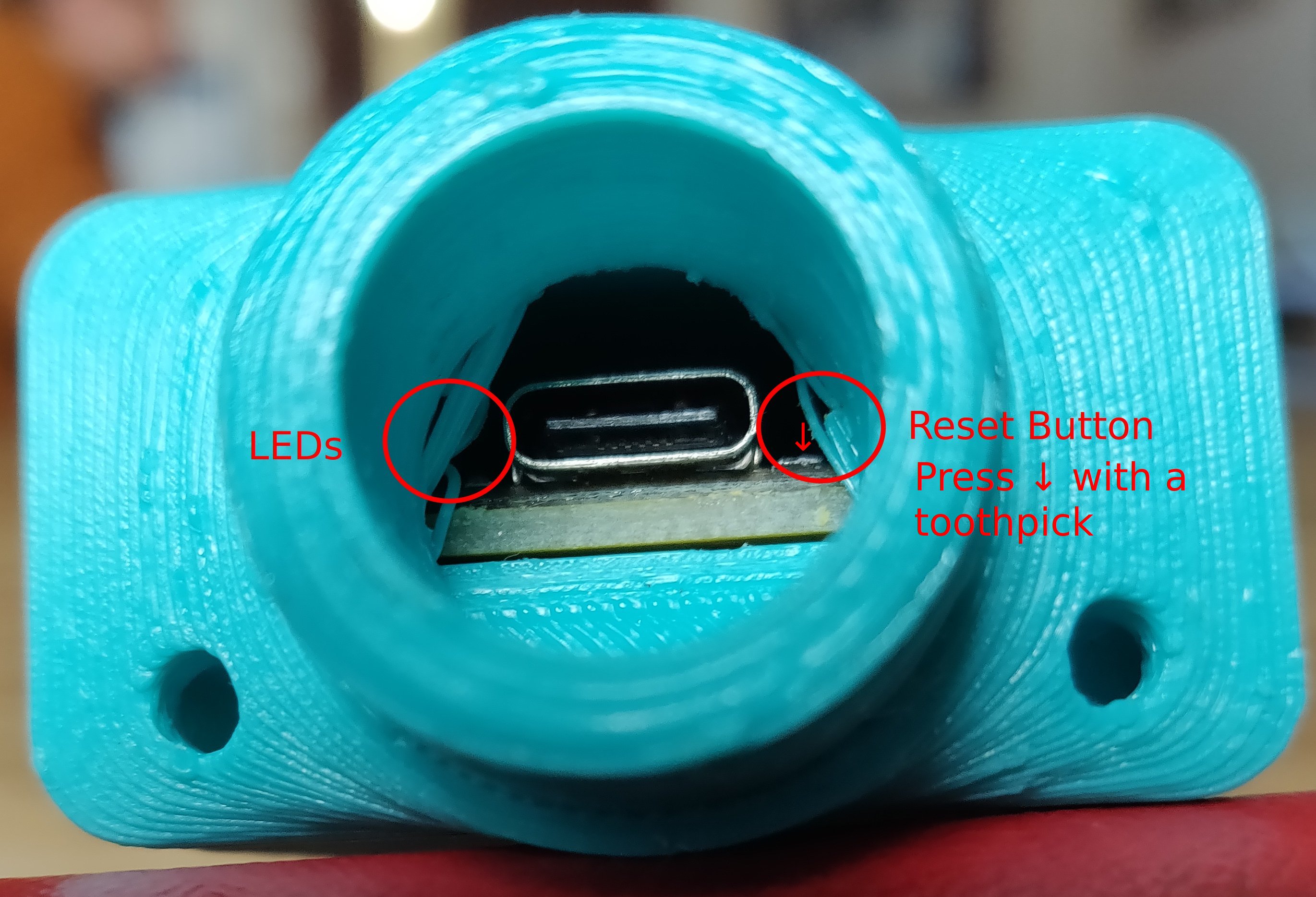
LEDs
You may see some flashing LEDs at the position indicated.
Pattern |
Meaning |
|---|---|
Solid Green |
Device is charging |
Yellow (or red+green), 3 flashes |
Device is in safe mode |
Red, 2 flashes |
Device has crashed |
Hard Reset
Very occasionally the device will get a hard crash. The simplest thing to do is to perform a hard reset. The hard reset button is surface mounted on the PCB next to the USB socket. Use a toothpick to feel for this button on the PCB in the area indicated. You will need to press down rather than in (in the direction of the arrow on the image), and you should feel a definite click when you have found it. This will restart your device from safe mode and after a crash.
USB Drive not appearing
Occasionally you may get a condition where the device is unresponsive and it will not appear as a hard drive when connected to a laptop (or it repeatedly appears and disappears). In this situation it can be useful to deliberately enter safe mode. Safe mode is a special mode where the code on the device does not run, but the usb drive is available.To enter safe mode, press the reset button twice with about a 1 second gap. You should then see repeated yellow flashes x3.
You should now be able to connect it, update the firmware and possibly repair the filesystem - use fsck on Linux, or chkdsk on Windows.
Finally press the reset button one more time to go back to the normal mode.
Still having problems
If you are still having problems please email me. Include
the contents of error.log, calibration_data.json, and config.json if they are present
on the device.
Updating your software and hacking
Software updates
You can update the software on the SAP6 with newer versions downloaded from GitHub (https://github.com/furbrain/STIC/releases/latest). You can check the software version currently running on your SAP6 using the Info menu under Device.
To update your software, first connect the SAP6 to a computer - it will appear as a drive called SAP6. Next
download firmware.zip from the github repository, and extract all the files to the firmware directory on the
SAP6. Warning - all files should be replaced at the same time as there are various dependencies across the
files and the SAP6 may not work if only a single file is updated. Check that the device is working immediately after
updating.
Hacking
This is an open source project - feel free to make your own devices, make adaptations and improvements. All the hardware and software designs can be found on GitHub (https://github.com/furbrain/STIC).
SAP6 uses CircuitPython. All the code to run it is available on the device itself - just plug it into a laptop using a USB C cable and you’ll see a USB drive appear.
You can change the code as you see fit. The version of CircuitPython that comes with the SAP6 has several additional libraries built into it:
mag_cal: This contains all the maths needed for calibration
rm3100: This is a device driver for the RM3100 magnetometer
laser_egismos: This is a device driver for the laser module 2 by Egismos
caveble: This module is a cave survey specific module to talk to cave surveying apps such as SexyTopo
File layout
In the top level director of the USB Drive, you may see:
firmwareDirectory with the application code
fontsDirectory with the fonts used by the device
imagesDirectory with the images used by the device
readingsDirectory with any saved trips
boot.pyThe code that runs on startup, before all the other python code runs
code.pyThis code simply calls
runinfirmware/main.pyconfig.jsonThe calibration and settings data for the device
manual.pdfThis documentation
calibration_data.jsonA record of all the calibration shots you took the last time you tried to calibrate
error.logDebug info stored here if the device crashes or encounters an error
DEBUGIf this file is present, then the device is in debug mode. You can also use
debug.txt, or in fact any file withdebug(any capitalisation) as the basename. You won’t see the normal battery charging screen, but you can double click A and start the main device running. You also get a serial connection on/dev/ttyACM0or/dev/ttyUSB0on linux orCOM1on windows, which will show debug information.
Make Your Own
You can build your own SAP6! You will need access to a 3d printer and ideally a laser cutter. You will also need to make some PCBs - you can etch these yourself or get a company to do it. Seeed and JLCPCB are some of the many companies that can do this for you.
PCB
Get the gerbers from
GitHub (https://github.com/furbrain/STIC/releases/latest):
download pcb.zip. That will contain the gerbers for the main board and also the button board. The traces are all
pretty wide so you can mill or etch the board yourself.
See the bom.csv in pcb.zip for the list of components and where to get them
Solder the components onto the board - they are all fairly chunky so you don’t need to be a whizz at soldering. Don’t solder the display on initially, this is easier to do while attaching the board to the mount. Note the button 3-pin connector goes on the bottom of the board.
Plastic parts
From GitHub (https://github.com/furbrain/STIC/releases/latest)
download hardware.zip
You will need to 3d print the following STLs:
abs\shell.stlabs\cap.stlabs\bezel.stlabs\shim.stlabs\mount.stl
The bezel and cap may be best printed upside down. You may find it easier to print the cap_with_vanes - this
has some very thin tabs to help support it as it is being printed which can then be removed. Once printed, use a
soldering iron to push 4 brass M3 inserts into the holes on the end of the shell. You will also need to push one into
the hole in the mount.
TPU parts
Print tpu\Boot.stl in the softest TPU you can get away with.
Acrylic parts
Ideally, you should laser cut the following DXFs from 3mm clear acrylic. However, the designs are fairly simple so you may well be able to cut these by hand
acrylic\End plate.dxfacrylic\Window.dxf
Gaskets
Rubber\Cap Washer.dxfRubber\Refined Gasket.dxf
You can use 1mm silicone sheet or EVA foam for these pieces. Note that EVA foam works well but permanently deforms when used so will need replacing if you ever disassemble the device. Alternatively, generous use of silicone grease can mean you don’t need these parts at all.
Making the sled
First solder everything apart from the display onto both PCBs. Note you can either use a mini-SPOX connector or JST PH-2.0 connector for the battery. Check it is the right way round for your battery connector. Attaching the battery reversed may cause permanent damage.
Put the display in it’s location on the mount and put the main pcb on top.
Screw the PCB in place using a brass M3 screw, and solder the display in place.
Attach the cable to the laser module and the PCB.
Screw the laser module in place using M2 or #2 brass screws.
Attach your battery to the board, but don’t glue it in place just yet.
Installing software
FIXME
Final Assembly
You can see a video of this process at https://www.youtube.com/watch?v=XkpvDELlksQ.
Attach the cable to the connector on the PCB
Apply some silicone grease to the bottom of the boot and place on the button PCB. Make sure that A is at the end opposite where the cable comes out
Apply some silicone grease to the “shelf” on the boot
Push the boot and PCB into the shell. Make sure A is nearest the end. The cable should be pointing into the shell
Push the shim into the shell - it should hold it firmly in place. You may need to press the shell down against a hard surface
If you have used a mini-SPOX connector for the battery, bend it about 45 degrees towards the laser
Put a blob of glue on top of the laser and put the battery on it. This step is not in the video
Connect the cable from the button to the main PCB
Push the sled into the shell, keeping the button cable out of the way
The side tabs on the sled should mate into some dents in the inner wall of the shell
Smear some silicone grease on the end of the shell, then put the gasket on
Put more grease on the gasket, and put the acrylic end plate on, and screw into place with brass M3 screws.
Put a little grease in the channel in the base of the cap, and put the cap washer in, then a little more grease on the washer
Screw the cap on - and you’re done.
You will next need to calibrate the device before you use it. If you are successful in building your own, please let me know, especially if you have any suggestions to make for this guide.